

From a technical standpoint, VTuber applications like VSeeFace, VTube Studio, and Xiao K Live Room share a common architecture challenge: they are not a pure 3D engine application. Many begin with a 2D portal login, setting interfaces, or control panels before launching the main 3D avatar environment. From a business standpoint, moving these applications to the cloud unlocks subscription or pay-per-minute models and dramatically lowers the hardware requirements for end users globally.
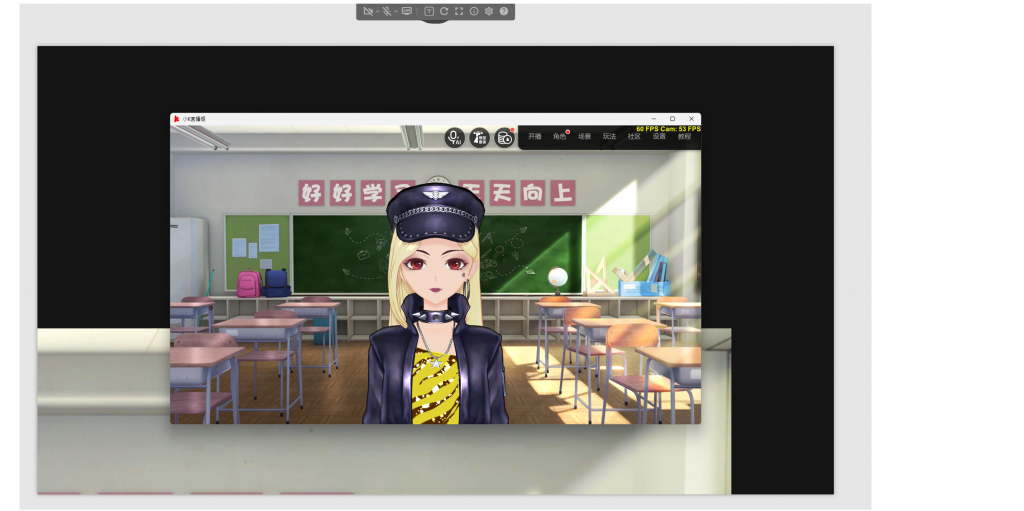
Figure 1: Xiao K Live Room streaming in action — a complete VTuber scene rendered remotely and delivered with full interactivity.
LarkXR is uniquely positioned to support this hybrid workflow. While standard SR (3D Shared Mode) excels with native Unreal or Unity pixel-streaming apps, it often fails to display or interact properly with 2D login screens and interface elements. The solution lies in SR (Exclusive Mode)—designed precisely for applications that mix 2D UI elements with 3D rendering.
In addition, shifting from local execution to remote streaming requires audio and video passthrough (webcam and microphone) so VTubers can still use their local devices for real-time control and facial tracking.
The following step-by-step guide uses Xiao K Live Room as the implementation example. This popular VTuber software represents a typical hybrid 2D/3D architecture—starting with a 2D login portal before transitioning to the 3D avatar environment.
While these specific steps reference Xiao K Live Room’s installation paths and interface flow, the same configuration principles apply to VTube Studio, VSeeFace, and other VTuber applications that combine interface elements with real-time 3D rendering. Adjust file paths and interface-specific steps according to your chosen software.
Step-By-Step: Configuring Xiao K Live Room with LarkXR
Prerequisite
– Assume you already have LarkXR deployed, either standalone or cluster version of LarkXR
– Configure the application settings to enable selection of SR (Exclusive Mode)
Steps to Configure Application for Selection of SR
1. Navigate to <LARK_XR_INSTALL_DIR>\LarkXR-Standlone\larkxr-center\
2. Open file and edit application.properties
3. Search and configure pxy.dispatch-policy.enable-exclude-mode to true
4. Restart the LarkXR application
Step 1: Prepare and Verify the Application on the Server
Install Xiao K Live Room on the target host.
Launch it locally to confirm the portal login, avatar loading, and streaming features all work correctly.
Step 2: Create a New Package in the LarkXR Admin Console
Navigate to Applications → Package → Add Package.
Choose “Type of Installed File” (instead of the usual ZIP upload). This option is critical when the target application is pre-installed on the server rather than packaged for upload.
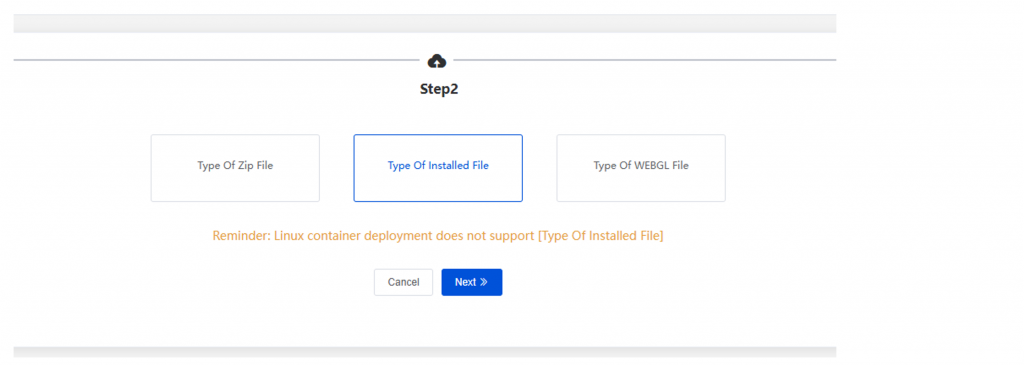
Figure 2: Selecting “Type of Installed File” during package creation in the LarkXR Admin Console.
Step 3: Enter the Executable Path
In the next screen, manually fill in the full path to the launcher executable (example: C:\Program Files\XKLive\bin\launcher.exe).
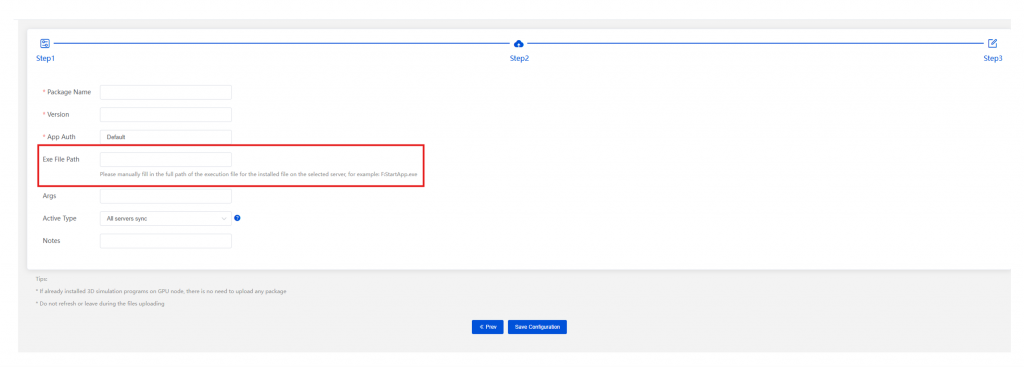
Figure 3: Specifying the exact EXE file path for the locally installed application.
Step 4: Publish the Package
Save the configuration, then click the “Add” button to publish the package as a streamable application.
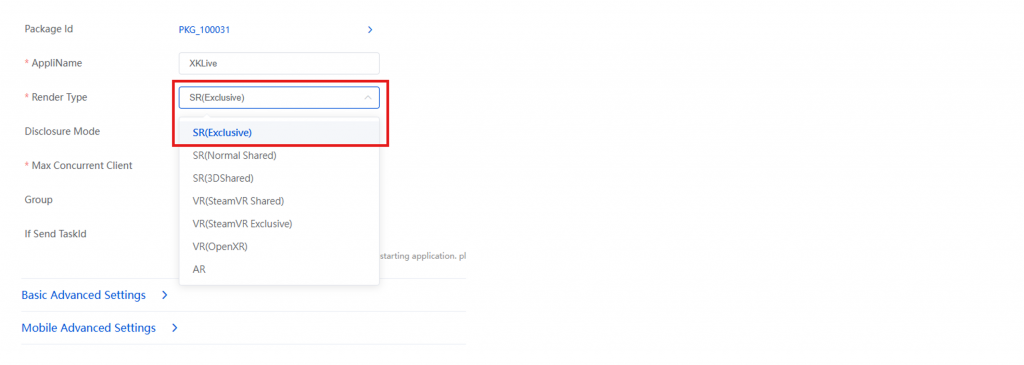
Step 5: Set the Correct Render Type
Edit the published application and change Render Type to SR (Exclusive).
This is the key setting that enables proper handling of the 2D login portal together with the 3D avatar.
Enabling Audio and Video Passthrough
Once the application is launched from the LarkXR streaming frontend:
1. Click the expand button in the top-center control bar to open the advanced panel.
2. Toggle on the camera (video) and microphone (audio) passthrough icons.

Figure 4: Audio and video passthrough controls in the streaming client interface.
Important Security Note
Passthrough of camera and microphone data requires the LarkXR server to be served over a proper domain name with HTTPS encryption. This mode automatically creates isolated system user accounts and directories on the render node, ensuring full compatibility with applications that rely on user-specific settings.